

How to Transfer a Travel eSIM to Another Phone
Can you transfer a travel eSIM to another phone? Learn how to check device compatibility, reinstall your profile, use Wi-Fi and a PIN, and troubleshoot setup.
A travel eSIM can move to another compatible phone, but the transfer process depends on the plan and device. In many cases, you can transfer a travel eSIM to another phone by installing the eSIM profile again, and you may need Wi-Fi and a one-time PIN to complete the setup.
It’s sensible to sort this out before switching phones, especially if you rely on mobile data as soon as you arrive. The key is to avoid removing the eSIM from your current phone until you know how the transfer works.
This guide explains what to check first, how to move the eSIM to a compatible device, and what to do if the new phone won’t connect. You’ll also learn when Wi-Fi and a one-time PIN come into play, so you can prepare the transfer without unnecessary guesswork.
Key Takeaways
- Check that both phones support eSIM and review the transfer steps before removing the profile from your current device.
- Find out whether the original QR code can be reused, or whether the transfer requires a new installation method.
- Have Wi-Fi available and watch for a one-time PIN during setup, then check the connection on the new phone.
- Before switching, learn what happens to your plan’s remaining data and validity so you know what to expect afterward.
Table of Contents
Transferring an eSIM between compatible devices
Transfer steps vary by provider and phone. Check the plan’s instructions before removing the old profile.
-
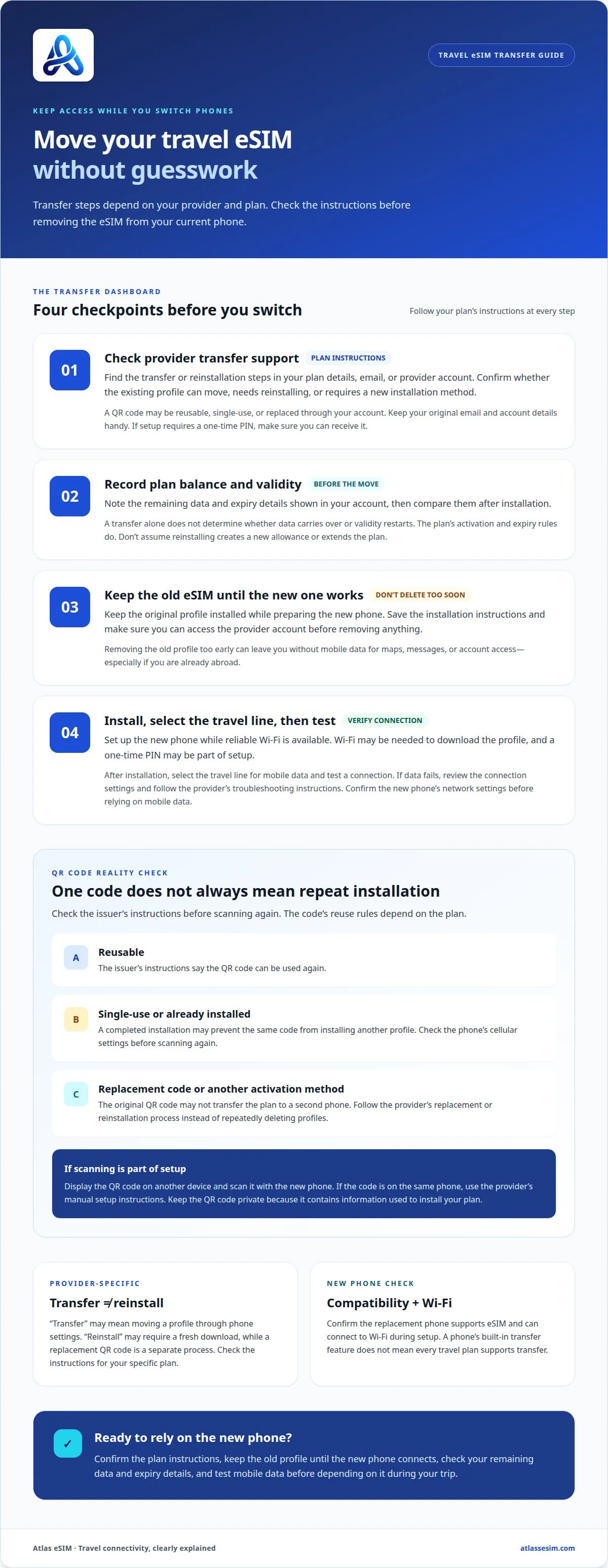
Check Provider Transfer Support
Open your plan details and find the transfer or reinstallation instructions. Check whether the provider supports moving the existing profile or requires a new installation. A QR code may be reusable, single-use, or replaced through your account. Keep the original email or account details handy. If setup requires a one-time PIN, make sure you can receive it.
-
Check Plan and Validity Impact
Review the plan’s data balance and validity terms before changing phones. A transfer alone doesn’t determine whether remaining data carries over or validity restarts. The plan’s activation and expiry rules do. Note the displayed balance and expiry details, then compare them after installation. Don’t assume reinstalling creates a new allowance or extends the plan.
-
Prepare Before Deleting the Old eSIM
Keep the old eSIM installed until the new phone connects. Before deleting it, save the installation instructions and make sure you can access the provider account. Before removing a travel eSIM from your old phone, check the transfer method, retain the account details you’ll need, and prepare the new phone. This helps prevent losing access to setup instructions.
- Set up the new phone while you still have reliable Wi-Fi. What are the risks of transferring a travel eSIM while abroad? Removing the old profile too soon can leave you without mobile data for maps, messages, or account access. Keep Wi-Fi available for installation and any one-time PIN. After setup, select the travel line for mobile data and test a connection.
If data still fails after setup, review the connection settings and follow the provider’s troubleshooting instructions. A 5G device needs a 5G SIM card to work on the 5G network. Confirm the new phone’s network settings before relying on mobile data during your trip.
Can a travel eSIM QR code be scanned more than once?
- Check the installation instructions before scanning the QR code again. It may be reusable or limited to its first successful installation. The issuer’s instructions explain what applies to your plan. Look for terms such as “single-use,” “reinstall,” or “transfer” in the setup email or account. Don’t assume the same code will work on another phone.
- Distinguish a failed scan from a completed installation. If the camera didn’t recognize the code, try again with the QR code clearly displayed on another screen. If the eSIM profile installed successfully, scanning the code again may not install another copy. Check the phone’s cellular settings first to see whether setup is already complete.
- Follow the provider’s transfer steps before removing the original profile. A QR code used to install an eSIM on your first phone may not transfer the plan to a second phone. The new device might need a replacement code or another activation method. Keep the original email and account access available as you follow the instructions.
- Prepare the QR code and connection before scanning. Open the code on a laptop or another device, then point your new phone’s camera at it. Use Wi-Fi if the phone needs an internet connection to download the eSIM profile. If the code is on the same phone, use the provider’s manual setup instructions instead.
- Read any error message before repeating the scan. “Already used” or “invalid” can mean the code can’t install the profile again, rather than indicating a camera problem. Follow the issuer’s replacement or reinstallation process instead of deleting profiles repeatedly. Keep the QR code private, since it contains information used to install your plan. For another trip, you can review travel connectivity options.
Which travel eSIM providers let you transfer an eSIM between devices?
- Start with the company that issued your travel eSIM. Its instructions explain whether you can move the existing profile, reinstall it, or need a replacement. Search your order email and account for “transfer,” “reinstall,” or “new device.” A phone’s built-in transfer feature doesn’t mean every travel plan supports it.
- Check the instructions for your specific plan, not just the provider’s general eSIM page. Setup steps may vary across plans or partner networks. Look for instructions that cover both your current phone and the replacement. If the page explains only first-time installation, don’t assume you can scan the same code again.
- Confirm what the provider’s instructions mean. “Transfer” may refer to moving a profile through phone settings, while “reinstall” may require a fresh download. Getting a replacement QR code is a separate process. Follow the plan instructions, since each option can affect the original profile and remaining data differently.
- Use the provider’s account or help flow before changing devices. Find the plan, select its transfer or installation option, and follow the on-screen instructions. If setup requires a one-time PIN, make sure you can access the email address or phone number that receives it. Don’t delete the old profile while you still need access to the account.
- Compare the provider’s steps with the new phone’s eSIM settings. Confirm that the replacement device supports eSIM and can connect to Wi-Fi during setup. If the provider directs you to install a profile, complete that process before testing mobile data. The instructions should explain what to do with the old profile and how to confirm the new connection.
Does transferring a travel eSIM reset its data plan or validity period?
- Review the plan details before starting. Moving an eSIM profile and buying a new plan are different actions: a transfer moves access to the existing plan, while a purchase creates a separate plan. Check the terms for data limits, expiry conditions, and rules for reinstalling the profile on another phone.
- Note the remaining data and expiry information shown in your account. For example, record whether the plan displays a data balance and end date. These details give you a baseline after setup. A transfer alone doesn’t show whether the allowance or validity period will change. The plan’s rules determine what carries over.
- Find out when the plan’s validity begins. Some plans start validity at activation, while others use a stated start condition. This matters if you install the profile on a new phone before traveling. Check the plan wording, and avoid activating or reinstalling early if it could affect the start of your usage period.
- Follow the instructions for your existing plan. If they describe transferring or reinstalling, use those steps rather than buying another plan. A separate purchase may have its own data allowance and validity terms. Don’t assume it will combine with your remaining data or extend the current plan’s expiry date.
- After setup, compare the displayed plan details with your saved baseline. Check the data balance, expiry information, and selected mobile-data line. If the account shows a separate plan, review its details before using mobile data. For a new trip, choose a travel data plan that matches your destination and expected usage.
Atlas eSIM: Local eSIM data plans
Atlas eSIM offers Local eSIM data plans and Regional Plans for travelers who need mobile data abroad. Choose a local plan for one destination, or a regional plan for a trip across multiple countries. Plan details show the price and data allowance upfront, helping you compare options before travel. Customers usually receive an installable QR code in under 60 seconds. If you’re changing phones, follow the plan’s installation instructions before removing its eSIM profile, since transfer steps depend on the plan and device. For your next trip, explore the options and choose coverage that fits your route. Visit atlassesim.com to view Atlas eSIM plans.
Make your next phone switch part of your trip prep
Changing phones is easier before you depend on mobile data abroad. Set aside time to follow your eSIM’s instructions, keep access to the account that holds the plan, and leave the old profile in place until the new phone is ready. This gives you time to resolve setup issues while your usual connection is still available.
If you’re wondering whether you can transfer a travel eSIM to another phone, treat it as a plan-specific process, not a routine phone setting. Keep the installation details handy and confirm the new phone connects before relying on it during your trip.
If you need help planning your next connection, contact Atlas eSIM for help. With a little preparation, you can make your phone switch calmly and travel ready to connect.
Frequently Asked Questions
Can you transfer a travel eSIM to another phone?
Yes, if the plan supports the transfer and both phones support eSIM. Check whether you’re moving an existing profile or installing a replacement. For example, switching to a backup phone may require a new QR code rather than a scan of the original. Check the plan’s instructions before deleting anything, then confirm the new phone can use eSIM.
How do you move a travel eSIM to a new phone?
Follow the steps for your plan. Connect the new phone to Wi-Fi, open the provider’s account or installation email, and follow the transfer or reinstallation instructions. Keep access to any account login or one-time PIN needed during setup. If the new phone can’t display the QR code, open the email on another device and scan it.
Do travel eSIM providers allow reinstallation or transfer?
Provider rules vary: some plans support reinstallation or transfer, while others require a replacement profile. Check the instructions for your specific plan instead of assuming one policy applies to every eSIM from that provider. If you’re preparing a spare phone, find the right process before traveling and keep the setup details somewhere accessible.
Can you transfer a travel eSIM from iPhone to iPhone?
Yes, if the plan supports the move and both iPhones support eSIM. Follow the plan’s instructions for the receiving iPhone rather than assuming its built-in settings can transfer every travel profile. If you’re replacing a damaged iPhone, make sure you can access the account or email with the installation details from another device.
Can you transfer a travel eSIM between iPhone and Android?
It may be possible if the plan supports a transfer between platforms and both phones support eSIM. IPhone and Android setup menus can differ, so follow the provider’s instructions for the receiving device. For example, moving from iPhone to Android may require installing a profile with a QR code rather than using a phone-to-phone transfer option.