
How to Get an eSIM QR Code From Your Carrier
Learn how to get an eSIM QR code from your carrier, check device requirements, install it on iPhone, and fix common scanning problems before activation.
A QR code isn’t always required to set up an eSIM, but some Android devices use one to download the eSIM profile. If you’re adding an eSIM to an iPhone after setup, request the QR code through your carrier. Knowing how to get an eSIM QR code starts with checking which setup method your device and carrier support.
A quick scan may not be all you need: a code can expire or require a separate confirmation code. This guide explains how to request the QR code, what to prepare before scanning, and how to install an eSIM on an iPhone. You’ll also learn what to do if the scan fails.
Key Takeaways
- Find out whether your phone’s eSIM setup uses a QR code or another activation method before you begin.
- Request the code through your carrier’s eSIM setup process, then install it promptly because some codes expire.
- Check that your phone supports eSIM and keep the code easy to access while you set up the line.
- On a compatible iPhone running iOS 17.4 or later, you can add an eSIM by touching and holding a carrier QR code in Mail or a browser.
Table of Contents
Will I need a QR code while I'm setting up an eSIM on my new line of service?
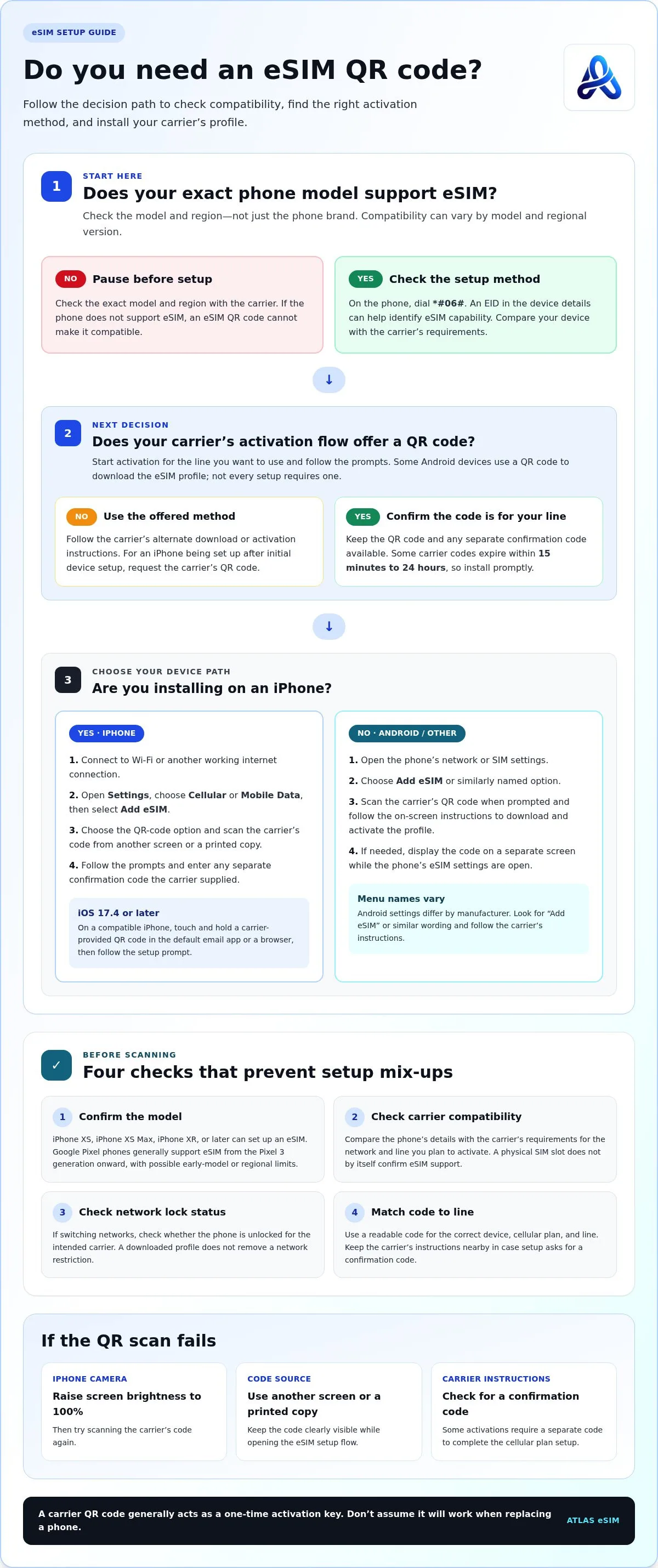
Not every eSIM setup requires a QR code, but some Android devices use one to download an eSIM profile. A QR code generally acts as a one-time activation key, so don’t assume the same code will work when replacing a phone.
-
Check QR code needs and setup requirements
Check whether your device supports eSIM before starting, as compatibility can vary by model and region. Dial *#06# in the phone app; an EID displayed with device details can help identify eSIM capability. Some regional phone variants have limitations, so match the setup method to your exact model.
-
Get a QR code during setup
Start the new-line activation flow and follow its prompts to see whether it offers a QR code or another download method. For an iPhone being set up after initial device setup, contact the carrier to get its code. Keep the code available during installation: some carriers issue codes that expire within 15 minutes to 24 hours. A confirmation code may also be required to activate the cellular plan.
-
Scan and install the code on Android
Open your Android device’s network or SIM settings, choose the option to add an eSIM, and scan the carrier’s QR code when prompted. Follow the on-screen instructions to download the profile and activate the cellular plan. Menu names vary by manufacturer, so look for “Add eSIM” or similar wording. Display the code on another screen and follow the carrier’s setup instructions.
-
Scan and install the code on iPhone
On iPhone, open Settings and select the option to add an eSIM, then follow the prompts to scan the carrier’s code. With iOS 17.4 or later, you can also touch and hold a carrier-provided QR code in the default email app or a browser. If scanning fails, raise screen brightness to 100% and try again. Complete any confirmation prompt to activate the cellular plan.
Getting an eSIM QR code from a carrier
To get an eSIM QR code from your carrier, start the eSIM activation process for your line. Charges depend on the carrier’s billing terms, which may treat initial activation and replacement differently.
- Sign in to your carrier account or open its official app, then find the line you want to activate. Look for options such as “Add eSIM,” “Replace SIM,” or “Switch device,” and select the one that matches your situation. Choosing the correct line matters because the carrier links the eSIM profile to that account and cellular plan.
- Follow the carrier’s activation instructions and provide the requested account or device details. The carrier may use them to identify your line and prepare its eSIM profile. Keep your phone nearby, since some activation processes send the QR code to another device or account contact method. Don’t scan a code intended for a different line.
- If the account process doesn’t display a code, request one through the carrier’s support channel. Explain whether you’re activating a new line, switching from a physical SIM, or replacing an eSIM. These details help direct your request. Ask for the QR code and any separate activation instructions together, so you can complete setup without searching through multiple messages.
- Keep the carrier’s message or account page until installation is complete. Check that the QR code is readable and that the instructions match the device and network you intend to use. For Android, display the code on a separate screen while opening the phone’s eSIM settings. To avoid mixing up activation methods, follow the steps for your specific line change.
Fees depend on the carrier’s billing terms, and initial activation and replacement may be treated differently.
Requirements before scanning an eSIM QR code
Prepare the right device and connection details before scanning. These checks help you avoid starting installation on an incompatible phone or the wrong cellular line.
- Confirm your phone model supports eSIM. iPhone XS, iPhone XS Max, iPhone XR, or later can set up an eSIM. Google Pixel phones generally support eSIM from the Pixel 3 generation onward, though some early or regional models may have limits. Match the exact model and region, not just the phone brand.
- Check eSIM compatibility on the phone itself before scanning. Dial *#06# to display the device’s IMEI, one way to check compatibility. Compare the information shown with the carrier’s device requirements for the cellular network and line you plan to activate. Don’t assume a physical SIM card slot means the phone also supports a digital SIM.
- If you’re switching networks, check whether your device is unlocked for that carrier. An eSIM profile may download successfully, but the phone still needs to connect to the intended network. Review the phone’s carrier or network settings first, especially if it came with a different carrier’s physical SIM.
- Display the QR code on a second screen or use a printed copy, then open the phone’s eSIM setup flow. The camera needs a clear view, and the code must match the line being activated. Keep the carrier’s instructions nearby in case setup asks for a confirmation code. Don’t scan a code sent for another device or cellular plan.
How to scan and install an eSIM QR code on iPhone
Use the iPhone’s eSIM setup flow to scan the carrier’s code and download its profile. Keep the code visible on another screen until installation is complete.
- Connect your iPhone to Wi-Fi or another working internet connection before you start. Open Settings, tap Cellular or Mobile Data, then choose Add eSIM. The label may vary by iOS version and region. Keep the carrier’s email or message nearby, and check that its QR code is for the line you intend to add.
- Choose the QR-code option and point your iPhone camera at the carrier’s code on another screen or printed page. Hold the phone steady until it recognizes the code. On iOS 17.4 or later, you can instead touch and hold a carrier-provided QR code in the default email app or a browser, then follow the setup prompt.
- Follow each on-screen prompt to download and activate the eSIM profile. If the carrier requests a confirmation code, enter the one supplied with its activation instructions. Check the carrier or plan details displayed before continuing, especially if your iPhone already has another cellular line. Choose the new eSIM’s label and default line settings when prompted.
- Wait for the iPhone to finish installing the profile before closing the setup screen. If the camera won’t read the code, increase the screen displaying it to 100% brightness and try again. Keep the QR code visible and reposition your iPhone to reduce glare. After installation, check Settings under Cellular or Mobile Data to see the new line and its status.
Atlas eSIM: Local eSIM data plans
Atlas eSIM offers local eSIM data plans and regional plans for travelers who need mobile data abroad. Choose a local plan for one destination or a regional plan for a trip across multiple countries. Plan details show the price and data allowance upfront, so you can compare options with your route and data needs in mind.
Customers usually receive an installable QR code in under 60 seconds, giving you a digital setup option for a compatible device. This can be useful when you want to arrange data before departure rather than rely on a carrier’s process for a new line. Check your device compatibility and follow the installation instructions that come with your plan.
Explore your travel data options or visit Atlas eSIM to learn more.
Make Your Connectivity Plan Part of Trip Preparation
Before your next trip, consider how you’ll stay connected during the first hours after arrival. Think about when you’ll need maps, messages, or travel details, and prepare your phone accordingly. Knowing how to get an eSIM QR code gives you one setup option. The next step is choosing a plan that fits your route and data needs.
Keep your activation details somewhere accessible without mobile data. Saving the carrier’s email or taking a screenshot can make it easier to revisit the instructions. Consider when you want the plan active, too, so installation fits your travel schedule.
If you’d like help exploring your options, contact Atlas eSIM. A little preparation now can make getting online part of your travel routine, not a last-minute task.
Frequently Asked Questions
How long does the eSIM QR code remain valid?
It depends on the carrier: some mobile providers issue eSIM QR codes that expire within 15 minutes to 24 hours. Check the message or account page for an expiry time, and scan the code soon after receiving it. If it has expired, return to the carrier’s eSIM activation flow and request a replacement code for the correct line.
What should I do if the QR code doesn't work?
First, confirm the code matches the line you’re activating and is still valid. Clean the camera lens, enlarge the code on its screen, and make sure the full image is visible without glare. On iPhone, raising the screen displaying the code to 100% brightness can help. If scanning still fails, use the carrier’s manual activation instructions or request a fresh code.
How do I get an eSIM QR code from my mobile carrier?
Start in the carrier’s app or account and open the eSIM activation option for the correct phone line. If you can’t find a code there, contact the carrier and request the eSIM QR code and activation instructions. Explain whether you’re activating a new line or moving service to another device, so the code matches your setup.
How do I find or download an eSIM QR code in a carrier app or account?
Sign in to the carrier account linked to your phone number, then open the line’s SIM, device, or activation settings. Choose the eSIM setup option and follow the prompts to display or receive the code. Save the carrier’s instructions somewhere accessible on another device. If the account has no activation option, request the code through the carrier’s support channel.
Can I get an eSIM QR code online, or must I visit a carrier store?
A store visit isn’t always necessary. Start with the carrier’s website, app, or account, where eSIM activation may be handled digitally. If you can’t complete the request online, contact the carrier for the next step. Have your phone line and device details ready to help direct the request.
How do I scan and install an eSIM QR code on Android?
Open your Android phone’s Settings and find the SIM or network section. Select the option to add or download an eSIM, scan the carrier’s QR code, and follow the setup prompts. Menu labels vary across Android models, so search Settings for “eSIM” if needed. Keep the code on another screen and complete any activation prompt shown by the phone.