

How to Check eSIM Support and Download a Profile on Android
Learn how to check eSIM Android compatibility, confirm carrier and model support, and download a profile using a QR code or activation details with ease.
To check whether your Android phone supports eSIM, look for an Add eSIM option in its SIM settings or dial *#06# and see whether an EID appears. Android eSIM requires Android 9 (Pie) or later, but support also depends on the model, regional version, and carrier. To use an eSIM from a different carrier, the phone must be carrier-unlocked. Settings can vary between manufacturers, so the menu may look different from one phone to another.
These checks show whether your Android device is likely ready, but setup involves more than finding a menu or scanning a QR code. Android’s Local Profile Assistant (LPA) manages the eSIM profile process, connecting the download details with your phone’s eUICC, the component that stores profiles.
This guide explains how to check compatibility, understand the LPA’s role, and download an eSIM profile by scanning a QR code or entering an activation code. You’ll also learn what to try if the setup option is missing, so you can follow the process with a clearer idea of what your phone is doing.
Key Takeaways
- Use your phone’s settings and device details to spot compatibility issues, including regional model and carrier differences.
- Understand how the Local Profile Assistant coordinates profile downloads and activation on your phone.
- Prepare a reliable Wi-Fi connection, then follow the on-screen steps to scan a QR code or enter activation details.
- When moving to a new Android phone, plan the profile setup with your carrier rather than assuming it transfers automatically.
Table of Contents
How do I check if my Android device supports eSIM?
Check your device settings, Android version, and carrier lock before trying to install an eSIM. These steps can help you spot compatibility limits and avoid deleting a profile you may need.
-
Check Android eSIM compatibility
Open your device’s SIM settings and look for an option to add an eSIM. On Samsung Galaxy phones, check Settings, Connections, then SIM Manager for “Add eSIM.” On Google Pixel phones, open Settings, Network & Internet, then the mobile network setup page. You can also dial *#06#; an EID indicates eSIM capability. Menu names vary by model and region.
-
Review Android version compatibility and known issues
Check the Android version in Settings before you install a profile. eSIM requires Android 9 (Pie) or later, while Android 10 or higher can support multiple eSIMs. A compatible model name alone isn’t enough: manufacturers and carriers can customize Android, and regional models may lack eSIM capability. If the menu or EID check is inconclusive, confirm the exact model with its manufacturer, vendor, or primary carrier.
- Before using an eSIM from another carrier, check whether your phone is carrier-unlocked. One way to test is to insert a SIM from a different carrier and try making a call. If the call goes through, the phone is likely unlocked. A carrier may still need to enable eSIM service, even when the model supports eSIM.
- Compare the SIM options for your trip. A physical SIM is a removable card; an eSIM is a digital profile installed on your device. A travel eSIM lets you use a travel plan without swapping physical cards. Some Android phones support an eSIM and physical SIM at the same time, but configurations vary by device and location.
- If activation fails or the QR code won’t scan, connect to reliable Wi-Fi and retry the provider’s setup steps. Check that the code is intended for your device and that the carrier supports eSIM on your model. If installation still fails, follow the carrier’s activation guidance instead of scanning repeatedly.
- Don’t delete an eSIM profile as your first troubleshooting step. Deleting removes it from the device, and restoring access may require the carrier’s setup process. Before changing or removing a profile, make sure you have its activation details or know how to get replacement instructions.
Android eSIM architecture and Local Profile Assistant (LPA)
Think of eSIM setup as two connected tasks: managing a profile and enabling it for network use. Android’s LPA coordinates the setup you see on screen, while the eUICC stores the downloaded profile.
- Understand each component before you start. The eUICC is the embedded component that holds eSIM profiles. The Local Profile Assistant, or LPA, manages profile setup on the device. When you scan a QR code or enter activation details, the LPA connects that information to the profile download.
- Use Android’s built-in setup flow when adding a profile. Android 9 introduced eUICC APIs, which let mobile network operators create carrier-branded apps for managing eSIM profiles. On Android 11 and higher, the LPA can launch a carrier app’s interface during activation. Follow the screen shown on your device, whether setup continues in Android settings or a carrier app.
- Complete the download before choosing which line to use. The LPA manages profile installation, while your settings control whether the profile is enabled for calls, texts, or mobile data. After installation, open SIM settings, select the new profile, and enable it for the intended use. Downloading a profile and activating a line are separate steps.
- Understand why multiple profiles depend on device hardware and software. Radio HAL version 1.2 or higher is required for multiple eSIM support. Radio HAL version 1.4 and RadioConfig HAL version 1.2 are recommended for that support. These are system components, not settings you change during ordinary profile setup.
- Keep platform details in perspective. Android 10 devices with built-in eUICCs should define a nonremovable eUICC slot ID array. This is a system implementation detail, not a step for travelers to configure. For travel, focus on completing the LPA setup, then choose a plan suited to your destination, such as local eSIM data plans.
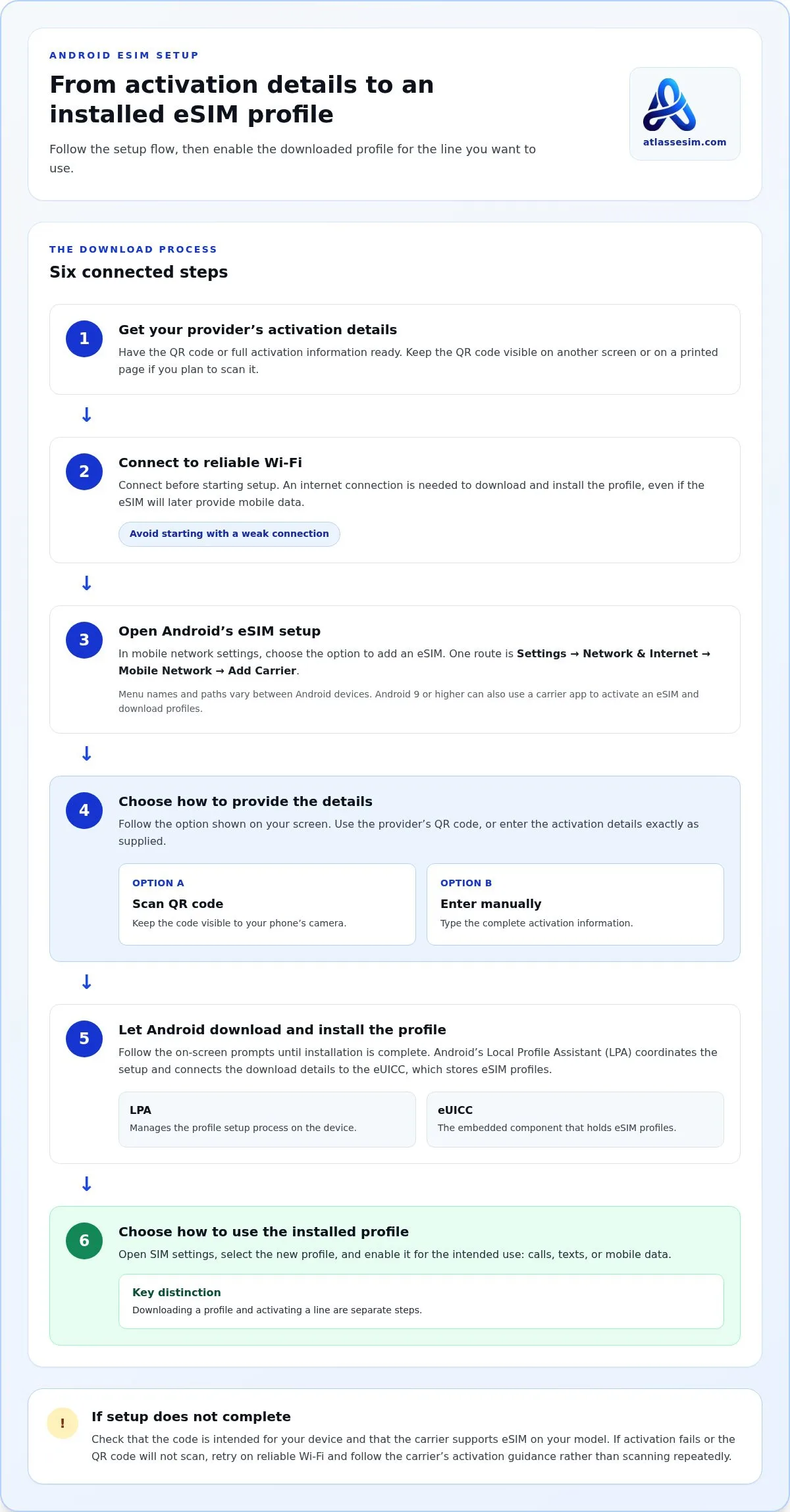
Downloading profiles with activation codes or QR codes
Before starting, have the provider’s activation details and a reliable Wi-Fi connection ready. Android can download a profile by scanning a QR code or entering details manually.
Get the activation code or QR code
Get the QR code or activation details from the network service provider. Keep the code visible on another screen or a printed page if you’ll scan it with your Android device. For manual setup, have the full activation information ready. Use reliable Wi-Fi for the download, and avoid starting with a weak connection.
Download the eSIM profile
Open Android’s mobile network settings and choose the option to add an eSIM. Menu names vary, but one route is Settings, Network & Internet, Mobile Network, then Add Carrier. Scan the provider’s QR code or enter the activation details when prompted. Android 9 or higher can also use a carrier app to activate an eSIM and download profiles.
- Connect your device to reliable Wi-Fi before opening the setup flow. You’ll need an internet connection to download and install the profile, even if the eSIM will later provide mobile data.
- Choose the QR-code or manual-entry option shown on screen. Have the provider’s code ready, and enter activation details exactly as supplied if scanning isn’t available.
- Follow the prompts until Android finishes installing the profile. On a Google Pixel 6 Pro, setup begins in Settings under “Network & internet.” Other Android menus may use different labels.
- After installation, turn on the eSIM and select it for mobile data. Enable data roaming if the plan’s setup instructions require it. Some phones may also need APN settings, depending on the device.
- If the download stops, reconnect to Wi-Fi and reopen the setup screen. Check that the code is readable and the activation details are correct, then retry the provider’s setup flow.
How do I transfer an eSIM to a new Android phone?
Plan the change before erasing or trading in your current Android phone. Transferring an eSIM may require carrier guidance and a fresh setup on the new device.
- Keep your current phone available while preparing the replacement. Don’t delete its eSIM profile or reset the device before arranging service on the new phone. This keeps the existing profile accessible while you follow the carrier’s transfer or reactivation instructions.
- Check eSIM support on your new Android phone first. Look in SIM settings for an option to add an eSIM, and check the device’s EID. Confirm that the carrier supports eSIM activation for the model, since device capability alone doesn’t mean the carrier has enabled it.
- Contact your mobile carrier’s customer care team for eSIM setup guidance. Explain that you’re moving service to a new Android phone, then follow the instructions for your line, including whether you need a new QR code, activation details, or a carrier app.
- Prepare the new phone for setup. Connect it to reliable Wi-Fi, then open its eSIM or mobile network settings. Follow the carrier’s instructions to download the profile. If the carrier provides a QR code, have it ready to scan; if it provides manual details, enter them carefully.
- Check that the new phone can use the line before clearing the old one. Enable the profile in SIM settings and test the service you need, such as mobile data. If activation stalls, follow the carrier’s setup guidance rather than deleting profiles or repeatedly attempting activation.
- Once the new device is working, follow the carrier’s instructions for the old profile. If you’re preparing a separate trip line instead, you can choose a local eSIM data plan for your destination.
Atlas eSIM: Local eSIM data plans
Atlas eSIM offers Local eSIM data plans and Regional Plans for travelers who need mobile data abroad. Choose a local plan for one destination or a regional plan for travel across multiple countries. These plans can suit a trip when you want to install an eSIM profile instead of swapping a physical SIM. Prices and data allowances are shown before checkout.
Plan details show the price and data allowance up front, helping you compare options before choosing. Customers usually receive an installable QR code in under 60 seconds, which you can scan on a compatible Android device. Check your phone’s eSIM support first, then follow its setup prompts to add the profile.
Visit atlassesim.com to explore plans for your destination.
Make your next trip easier to prepare
Make eSIM setup part of your travel preparation. Before departure, choose the connectivity option that fits your itinerary and set aside time to complete Android eSIM setup while you have a steady internet connection. This can help you focus on your destination instead of arranging mobile data after arrival.
Atlas eSIM offers Local eSIM data plans and Regional Plans for travelers choosing data for one destination or travel across a region. If you’re ready to explore an option for your trip, contact Atlas eSIM about a plan.
With a suitable plan selected and your device prepared, you can set off with one less travel detail to manage.
Frequently Asked Questions
What is an eSIM profile?
An eSIM profile is the digital set of subscription details that lets a device connect to a mobile network. It’s stored on the phone’s embedded SIM component, not on a removable card. Think of the profile as the plan information your phone uses: the eSIM hardware stores it, while Android’s setup process downloads and manages it.
Which Android phones support eSIM in the United States?
Supported Android models include Google Pixel 3, 3 XL, 3a, 3a XL, 4, 4a, 4 XL, 5, 6, and 6 Pro. Treat model names as a starting point, not a guarantee: regional versions and carrier settings can differ. Check the exact model variant and carrier support, since a compatible phone may still lack eSIM service from its carrier.
How can I check whether my Android phone supports eSIM?
Use more than the phone’s marketing name. Look in Settings for eSIM controls, then dial *#06# and see whether an EID appears. Compare the exact model number under Settings > About phone with the manufacturer’s compatibility information. If the EID and settings don’t match, the regional model or carrier configuration may explain the difference.
How do I set up and activate an eSIM on Android?
Install the profile while connected to Wi-Fi, then give it a clear label, such as “Travel data,” in SIM settings. Check which line Android selects for mobile data, and keep your home line assigned to calls or texts if needed. This makes it easier to select the right line after landing. Menu labels vary by phone brand.
How much does an eSIM cost for Android in the US?
There isn’t one standard US price for an Android eSIM. The device itself doesn’t set the plan cost; the provider and selected plan do. Compare destination coverage and data allowance with your trip needs, and review the price before checkout. A compatible phone doesn’t include a mobile plan, so device support and plan purchase are separate.